Set Layout in Web Meeting Control
Prerequisites
- Business or Enterprise plan.
- Admin access with relevant permission
Getting Started
- Sign in to the Matrx admin portal.
- In the navigation menu, unfold Meeting Management, and click Ongoing.
- Click the
 button behind an ongoing meeting.
 - On the meeting control page, click the Video Layout button
 You can set up a multi-screen layout for the meeting.
- Multiple multi-screen layouts can be set in a meeting
- Each multi-screen layout can be effective for different participants in the meeting
- After the multi-screen layout is set, it can be applied immediately or saved and applied later.
- After the multi-screen layout is saved, it can be edited or deleted
- After deleting the multi-screen layout, the screens that can be viewed by the effective participants framed in the original multi-screen layout will be restored to the default conference screen layout.
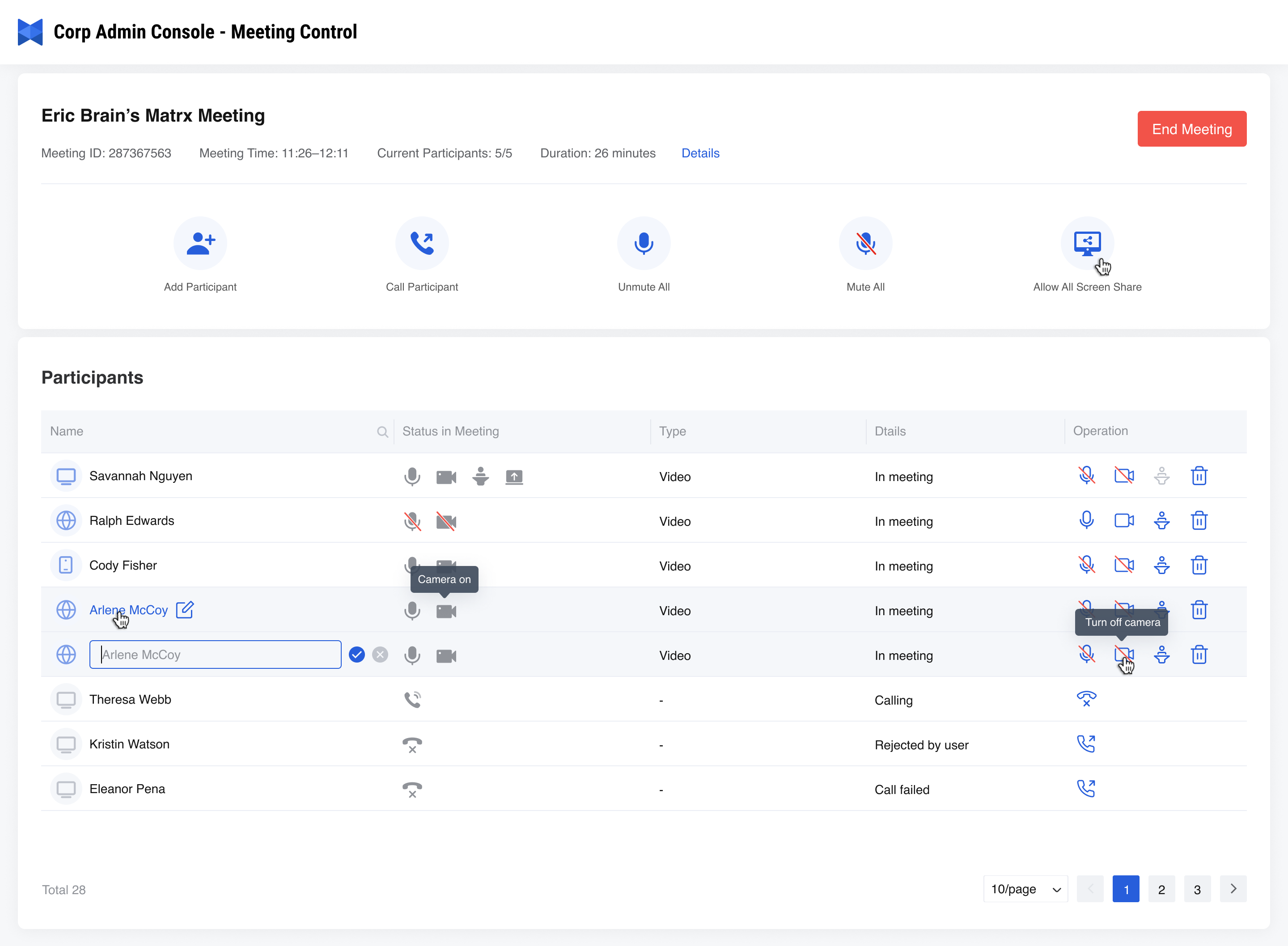
Set Video Layout
There are two main steps to set up a multi-screen layout for a conference:
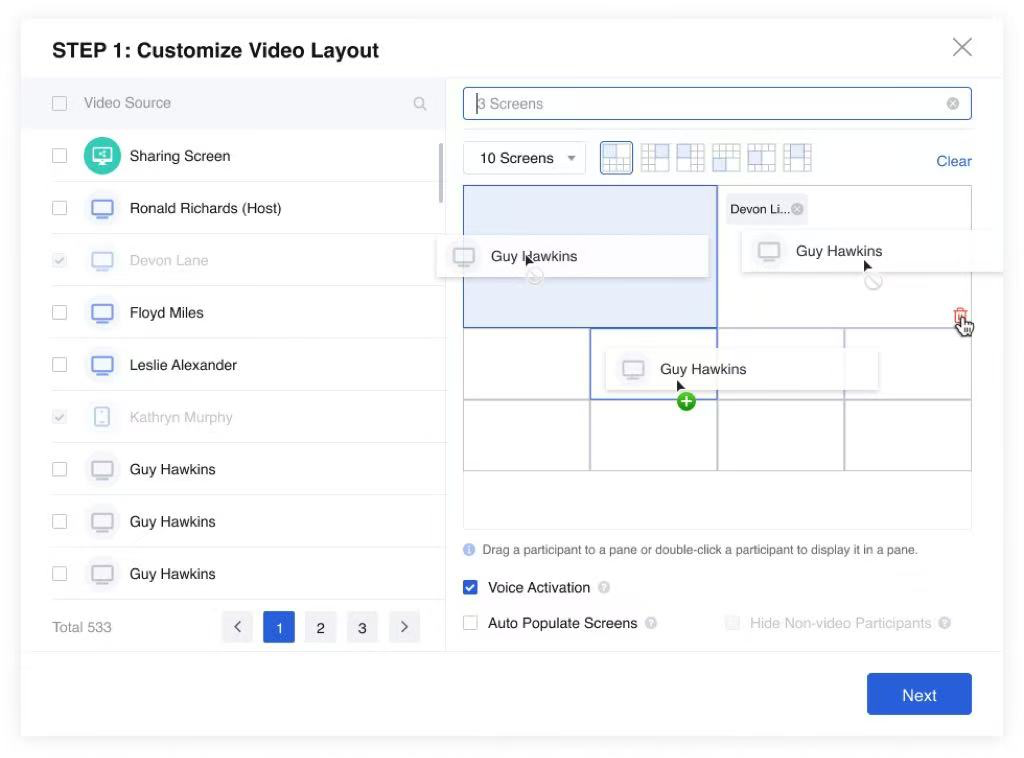
- Customize Video Layout
- Set the multi-screen layout name: The default name of the multi-screen layout is 1 Screen. You can click the name part to customize the name of the multi-screen layout.
- Select the number of grids: Click the drop-down menu, you can choose 1/2/3/4/5/6/7/8/9/10/13/16/17/20/24/25 grids
- Select screen layout: After selecting the number of grids, you can then select a layout mode

- Select video source: The list on the left is the video source. You can choose to share the screen (Sharing Screen) or all the participants in the meeting and place them in any grid in the screen layout.
- Double-click a video source in the list on the left to quickly add the video source to the empty grid selected on the right.
- Click and hold the mouse to drag a video source in the list on the left to the empty grid on the right.
- Click the Clear button to clear all the video sources set in the grid on the right.
- Click the
 button behind a video source that has been set in a grid to clear the video source from the current grid.
- Set the multi-screen layout mode
- Voice Activation: Set the voice activation mode. When the function is turned on, the blue grid in the grid will display the video information of the participant who is speaking in the current meeting by default.
- If there is a set user in the blue grid, the user will also be cleared from the blue grid
- Auto Populate Screens: Automatically fill the grid. When the function is turned on, the grid without video information will be automatically filled with other participants. Including participants who have not turned on the camera
- Hide Non-video Participants: Filter participants who have not turned on the video. This function can only be turned on after the automatic grid filling function is turned on. After the function is turned on, the automatically filled participant information will filter out the participants who have not turned on the camera
- Voice Activation: Set the voice activation mode. When the function is turned on, the blue grid in the grid will display the video information of the participant who is speaking in the current meeting by default.
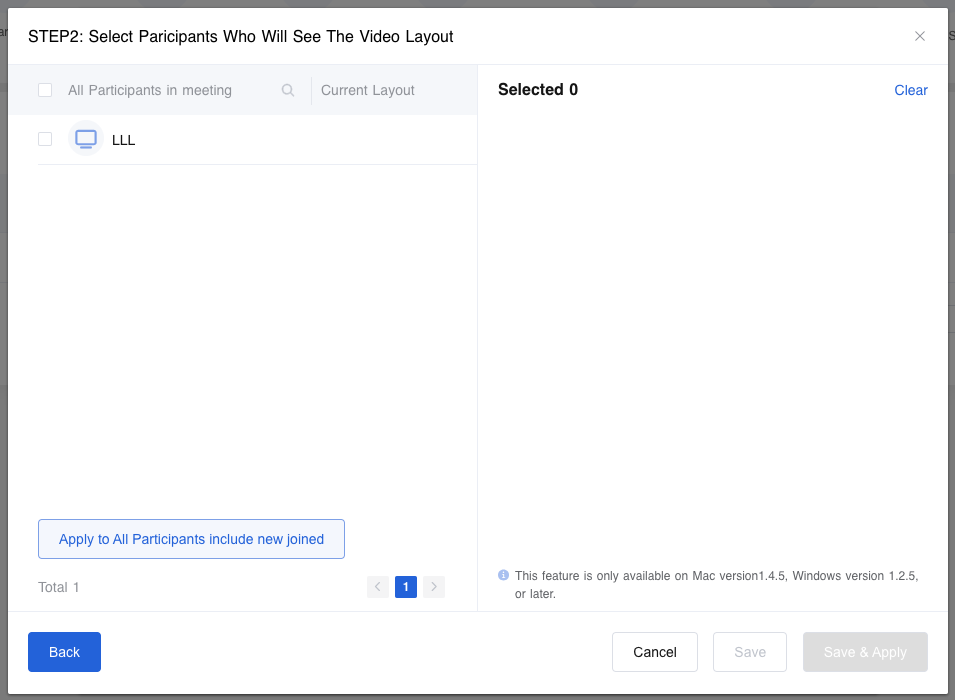
- Select Participants Who Will See The Video Layout
- You can select some of the participants in the meeting in the list on the left to apply the currently set multi-screen layout;
- You can select All Participants in meeting at the top of the list on the left to apply the currently set multi-screen layout to all participants in the current meeting;
- You can also click Apply to All Participants include new joined at the bottom to apply this multi-screen layout to participants who need to join the meeting later.
- Click Save to save only the current layout settings and not take effect
- Click Save & Apply to save and take effect on the current multi-screen layout
Frequently Asked Questions
What is the blue grid in the multi-screen layout setting?
The blue grid refers to the grid where the voice activation screen is located. When setting the multi-screen layout, if Voice Activation is turned on, the blue grid in the grid will display the video information of the participant who is speaking in the current meeting by default. If there is a user set in the blue grid when the function is turned on, the user will also be cleared from the blue grid.
Can I set different screen layouts for different participants in a meeting?
Yes You can set multiple multi-screen layouts in a meeting. Each multi-screen layout can independently set a different effective user range (ie: who can see this layout)
Can I preset the screen layout for participants who are about to join the meeting?
Yes
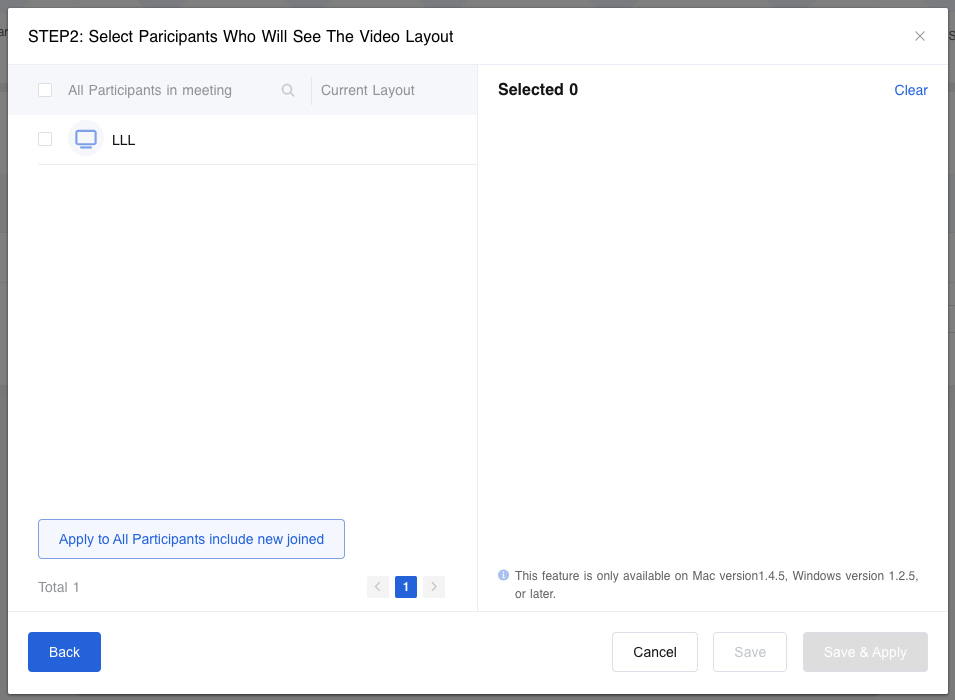
When setting the multi-screen layout for a meeting, in step 2, when selecting the effective user range, click Apply to All Participants include new joined at the bottom to include participants who join the meeting after the screen layout takes effect.
What happens if multiple multi-screen layouts are set for a participant?
The multi-screen layout set last will take effect. If multiple multi-screen layouts are set for the same participant, the later one will replace the earlier one. If the later multi-screen layout is deleted or canceled, the layout that the participant can see will be restored to the default layout of the meeting.
Why can't all participants be selected when setting the effective user range of the multi-screen layout?
Currently, it is not supported to set the multi-screen layout for mobile users. You can set the multi-screen layout for participants who attend the meeting on the desktop or web.